 GenPixy
GenPixy AI: A Beginner’s Guide to Your First Video
New to GenPixy AI? Turn one clear topic into an animated explainer video. Learn what to prepare, how to start free, and what to check before posting.
阅读约 3 分钟
此页面还没有翻译,暂以英文显示。
GenPixy AI turns a written topic into an animated explainer video with narration, illustrations, subtitles, and music. You can use it in a browser on your phone or computer, without recording yourself.
Your first video works best when it answers one small question. “Why do onions make us cry?” is a more useful starting point than “everything about food science.” But a narrow topic gives viewers a clear reason to watch.
This guide helps you make that first video, then decide whether it fits your audience.
What can you make with GenPixy AI?
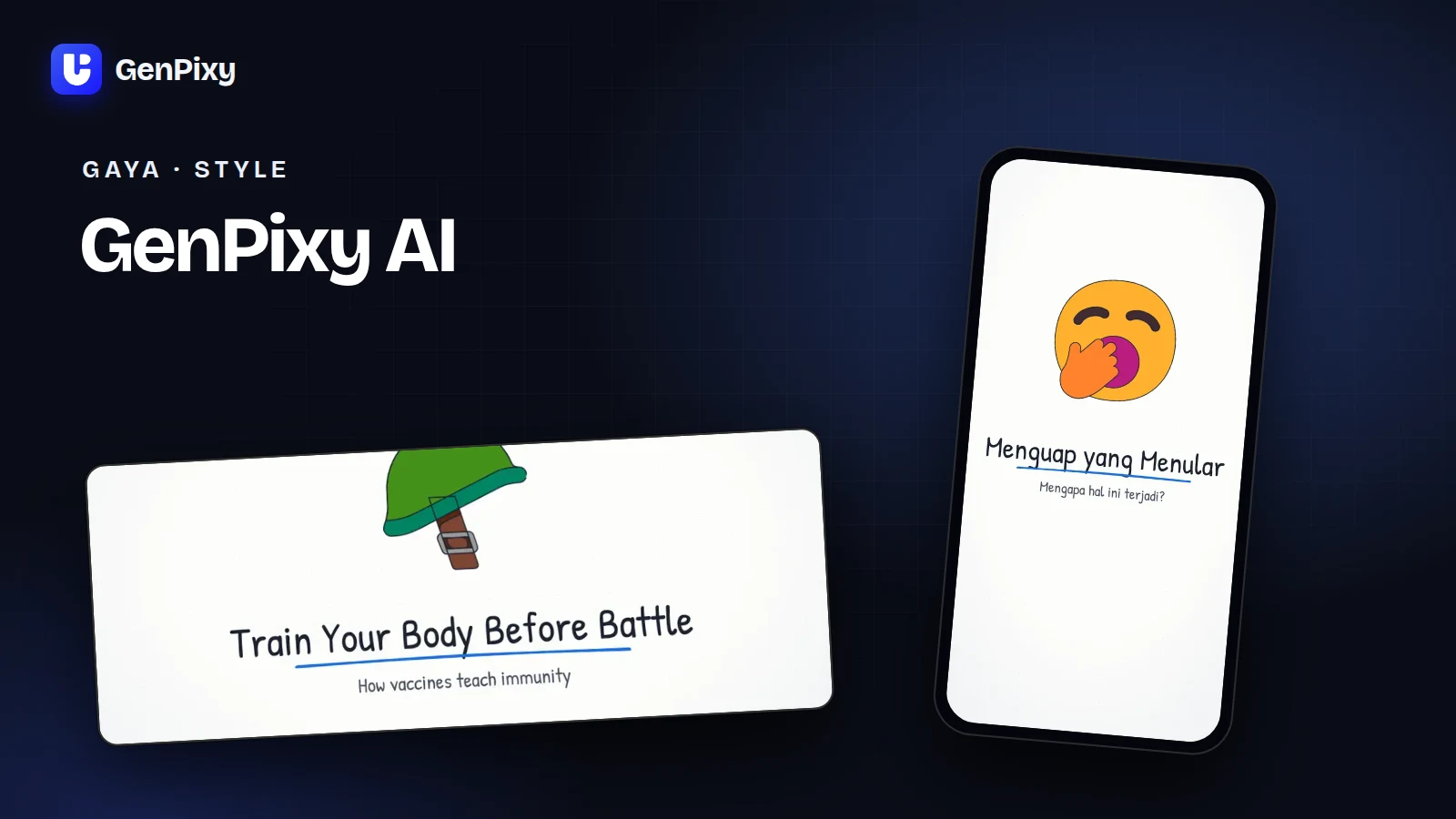
GenPixy makes 2D animated explainers in Whiteboard and Full Color styles. Common uses include a short lesson, an answer to an everyday question, or an introduction to a business concept.
Start with a result you can describe in one sentence: “After watching, my audience should understand why an onion makes their eyes water.” That sentence helps you choose what belongs in the video.
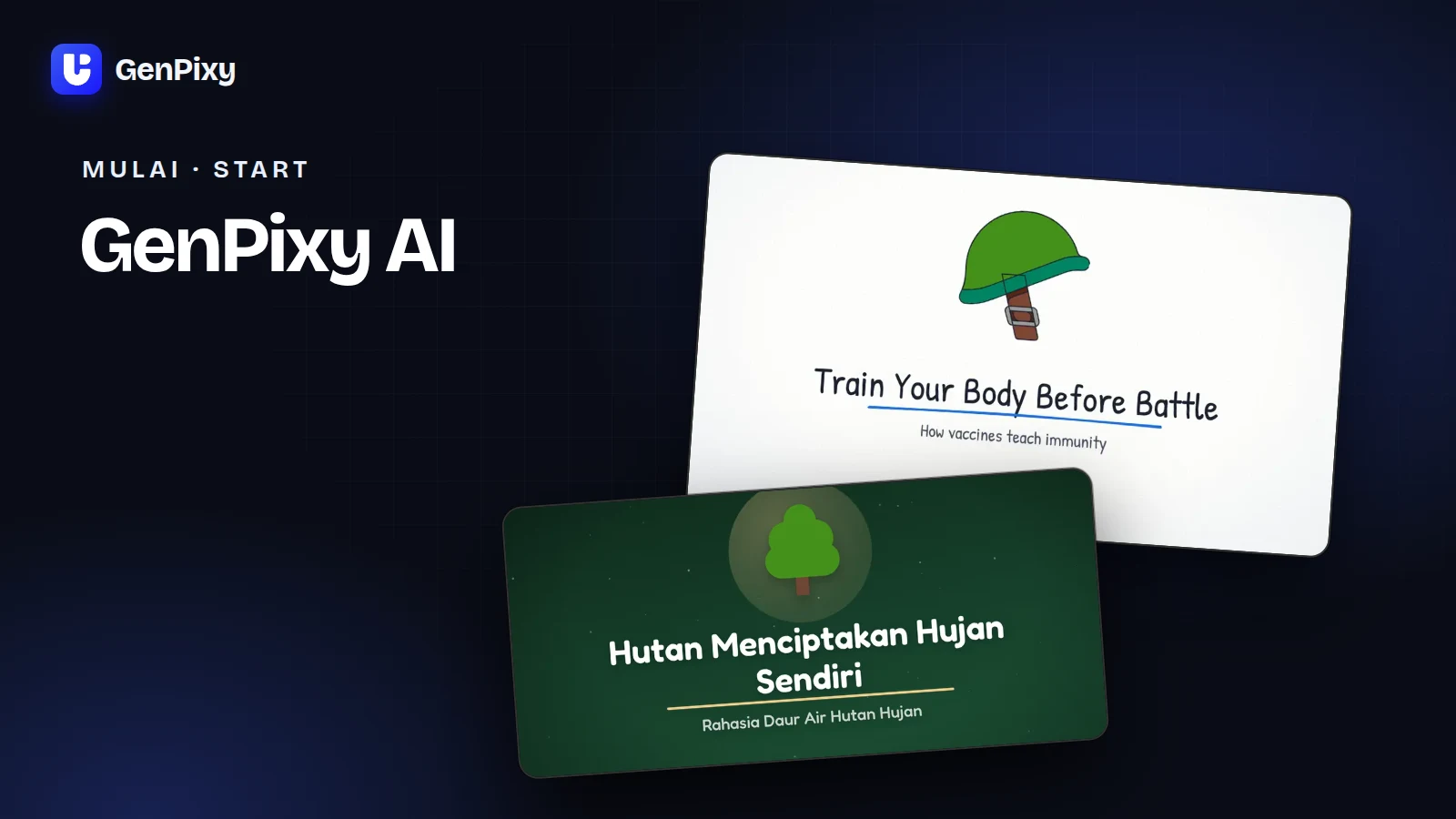
This is a real example of the result you can expect:
Write your first topic
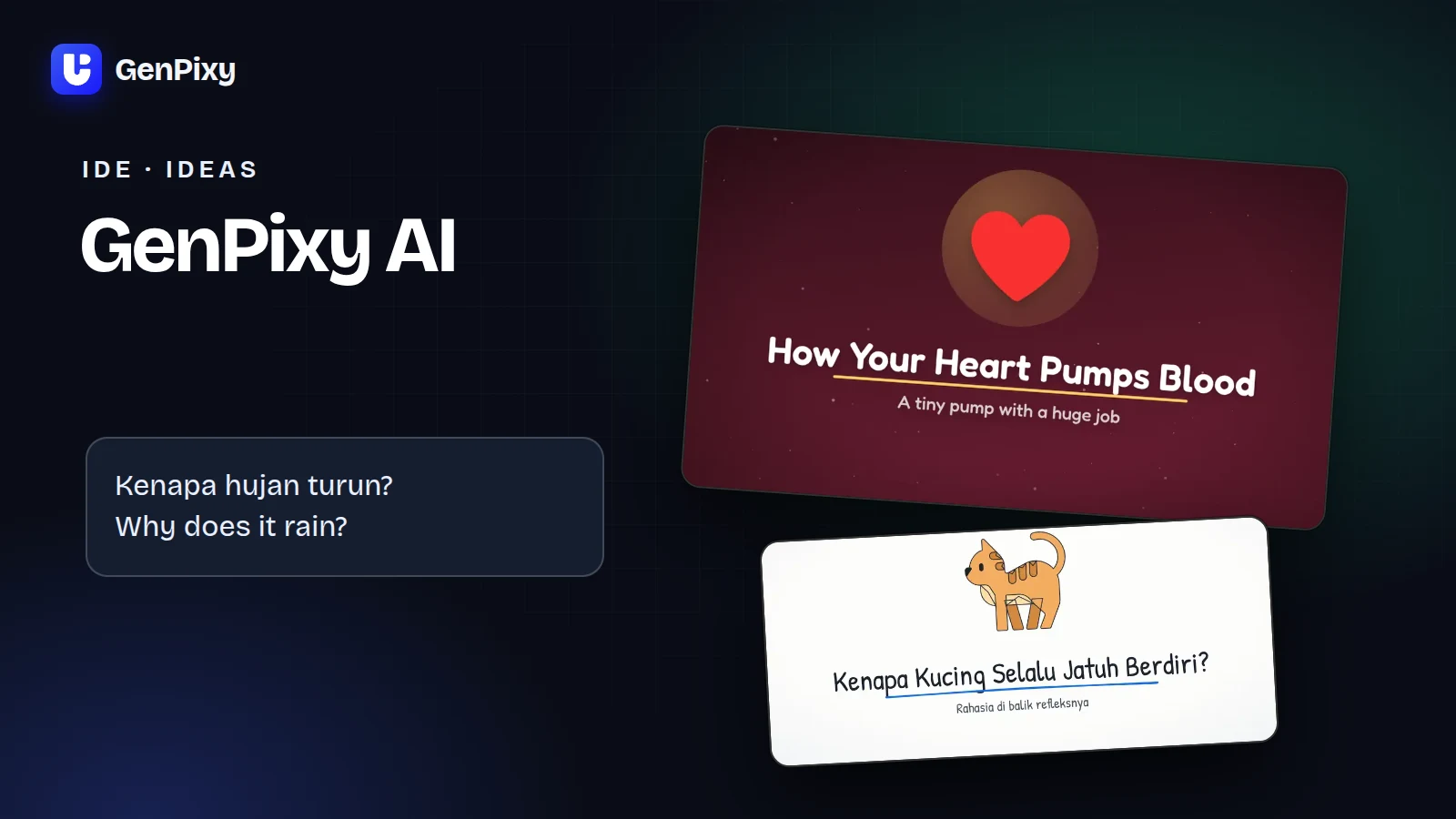
You do not need a finished script. Tell GenPixy what the video should explain, who will watch it, and which points matter.
Copy this example:
Explain why onions make us cry for curious beginners. Use simple English. Describe what happens when an onion is cut and why our eyes produce tears. Keep it focused on this one question.
The audience matters. A video for a primary school class needs different words from a video for people studying chemistry.
Avoid asking for a whole course in a short video. If your topic includes several questions, save the others for another post.
Make your first video
- Create an account, then open DrawGen.
- Paste your topic into the video topic box.
- Choose the narration language and a voice.
- Pick a style and format. Landscape fits a wide screen. Portrait fits a phone.
- Look at the available length and quality, then select Create video.
- Open the finished video, watch it, and download the files you need.
The finished result includes an MP4 video. You can also download an SRT subtitle file and a cover image.
If the form choices are confusing, use the GenPixy AI settings guide.
Can you try GenPixy AI for free?
Yes. Free video creation is available each day, subject to account eligibility and the shared daily availability shown in the app. The public offer currently includes videos up to 60 seconds at 720p.
Use the free option to test one topic before you plan a larger series. Check the app for your available allowance. If you need more videos, the pricing page shows current options for your region.
And you do not need to choose a paid option to understand how the product works.
Check the result before you post
Watch the whole video with sound. Check that names are pronounced clearly. Make sure the text is readable and the explanation matches your topic.
For a lesson, compare the facts with your teaching material. For a business video, check every claim about your product. These checks help you catch mistakes before your audience sees them.
Watch once on the device your audience will use. A video that looks clear on a laptop can feel different on a small phone screen.
Common questions
Do I need a camera or microphone?
No. You can start from a written topic and choose a narration voice in GenPixy.
Can I make an Indonesian video?
Yes. Select Indonesian for the narration. GenPixy also supports English and more than 70 languages through Auto.
What should I make next?
Keep the same audience and answer a related question. For example, follow the onion video with “Why does bread rise?” Use the GenPixy AI prompt examples to plan a small series.