 GenPixy
GenPixy AI Settings: Choose a Style, Format, and Language
Choose GenPixy AI settings for the video you want to share. Compare Whiteboard and Full Color, Landscape and Portrait, and narration language options.
3分で読めます
このページはまだ翻訳されていないため、英語で表示しています。
GenPixy AI settings let you choose the visual style, screen format, narration language, and available length of your explainer video. Start with where people will watch it, then pick settings that fit that use.
A classroom screen needs a different layout than a phone. But the topic can stay the same while the format changes.
This guide covers the main choices. It does not assume one setting works for every video.
Whiteboard or Full Color?
Both styles make animated explainers. The difference is how the explanation looks.
| Style | What viewers see | A useful starting point |
|---|---|---|
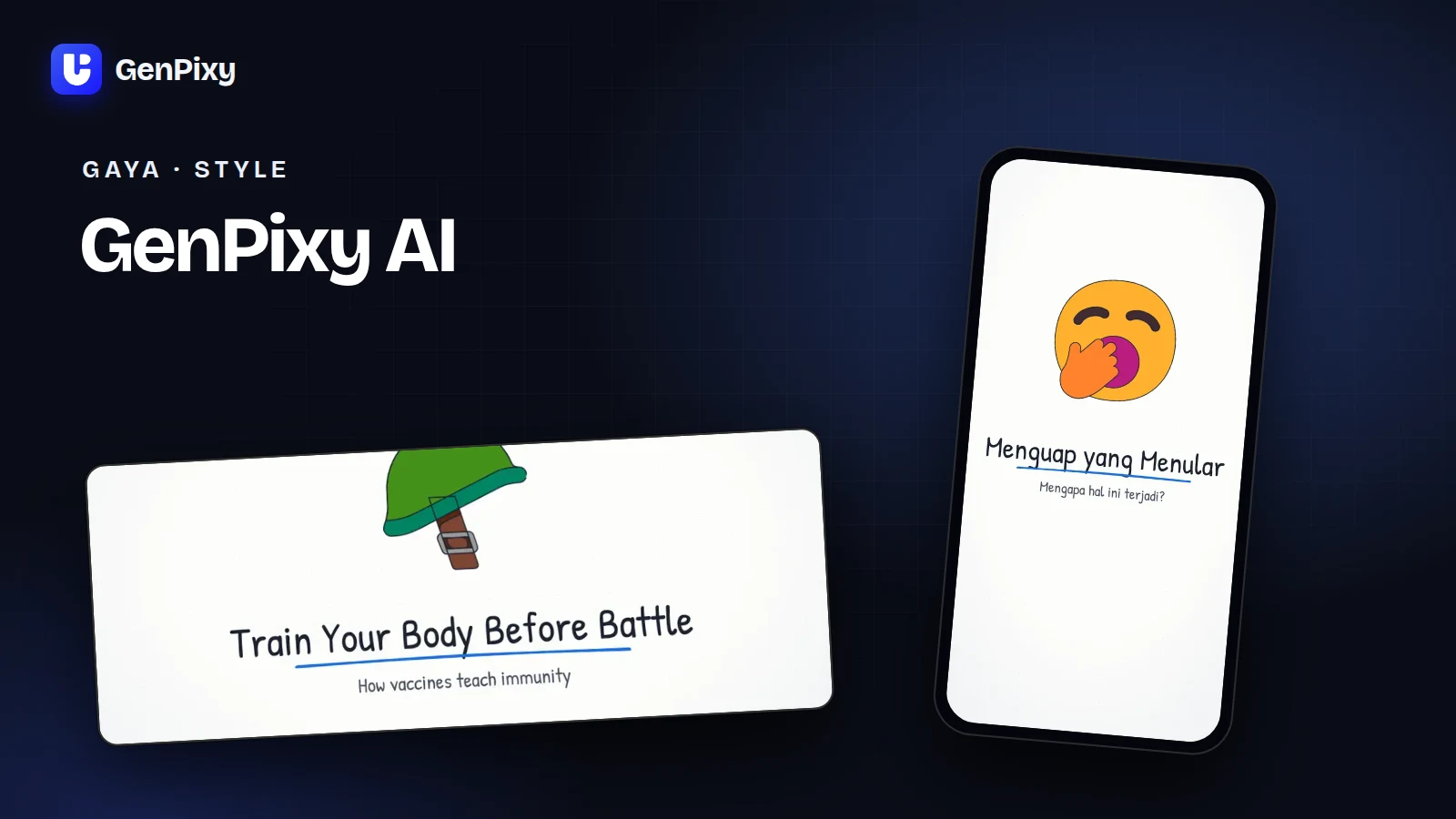
| Whiteboard | Drawings that appear against a board-like background | A concept you want viewers to follow carefully |
| Full Color | Colorful illustrated scenes | A lively introduction or an everyday question |
Choose the style that suits the subject and the audience. Whiteboard is a natural place to start for a lesson, while Full Color can suit a playful topic. Neither choice removes the need for a clear explanation.
A real Whiteboard example:
A Full Color example:
Landscape or Portrait?
Landscape 16:9 suits wide screens, presentations, and regular YouTube viewing. It is a practical choice when a teacher will play the video on a classroom display.
Portrait 9:19.5 gives you a tall video for phone viewing. Short posts for mobile audiences are where it helps.
Preview your downloaded file on the platform where you plan to post. Each platform places its own controls over the video, including buttons and captions. Keep that viewing experience in mind when you review readability.
The audience’s screen should drive this choice more than the topic.
Choose the narration language
You can choose English or Indonesian directly. Auto supports more than 70 languages and uses the language of your topic.
For a first attempt, keep the prompt and the intended narration language consistent. If you want Indonesian narration, write the topic in Indonesian and choose Indonesian in the form.
Check names and specialist terms when you watch the finished video. A clear written topic helps, but pronunciation still deserves a listen.
Pick a length that fits one idea
A longer video needs more useful material. Start with the smallest length that gives your question a complete answer.
A short topic such as “Why does bread rise?” can focus on one explanation. Broader lessons may need separate videos for different questions.
Available choices depend on the option you use. The current free public offer includes videos up to 60 seconds at 720p. Check the form for what your account can select, and use the pricing page for current paid options.
Check settings suggested from your prompt
If you use Match settings to prompt, review the suggested values before creating the video. Pay particular attention to the language and format, and check the length.
Write the content request clearly first:
Explain why bread rises for beginner home bakers. Use English. Focus on yeast producing gas and the dough holding it.
Then choose the settings in the form. They do different jobs. The topic defines the explanation, and the setting defines how viewers receive it.
Before you share
Watch with sound and check facts. If your audience uses phones, view the result at phone size. Download the MP4 and, if needed, the separate SRT subtitle file.
If the explanation feels crowded, narrow the topic for the next version. Changing the style cannot give a short video room for five unrelated ideas.
Follow the GenPixy AI beginner’s guide for your first attempt, or choose a topic from the prompt examples.